Getting Started
Starting your NEW account
(Step-by-step instructions)


Before you start (Important to read first)
This section will help you to set up your company account, and get you ready to load up your first project.
To save time, have the following details handy as they will be required while setting up your account:
– Your company legal name and any trading name that you use.
– Your company’s registration number (e.g. ABN for Australia).
– Your company logo in an image format (e.g. JEPG or PNG).
– Your business address, phone number and general email.
– The name, mobile number and email address for each of your internal team members who will be registered to use your WeBuild account.
Note: You can start with one or two team members, then add more later.
– The team members to whom you wish to give admin authority to manage your account.
Step 1 - Create an account for your company
Note: If your organisation already has a WeBuild account and you would like to join your team, ask the account admin to invite you.
To register your email address open this link in a new tab. You will continue the process of opening the account in that new tab. Enter your email address and password and click the “CREATE ACCOUNT” button.
Note: Keep this tab open to continue reading the instructions as needed.

Check your inbox for an email titled “Thanks for your registration!”, open the email and click the “Verify Your Email” button. You will then be directed to the registration wizard (see Step 3).

a) Start by completing your user profile, then click the “CONTINUE” button:

b) You can then click the “SELECT” button to the right of “Create your Company account”:

c) After typing in your Company name and Company registration number, click the “CONTINUE” button:

d) The final step is to complete your company branch information, including your office name (e.g. New York office), address and other information.
Click the “CREATE NEW BRANCH” button to finish creating your account.

Step 2 - Add team members to the account
After you log in to your Webuild account, you can access your company profile by clicking your name on the top right-hand side of your screen.

Once you have navigated to your company profile, select the Users tab and click the INVITE button to invite team members to join your account.

Type in the email addresses of team members you would like to invite to join your company branch, then click the INVITE button.
Note: You can start with one or two team members, then add more later.

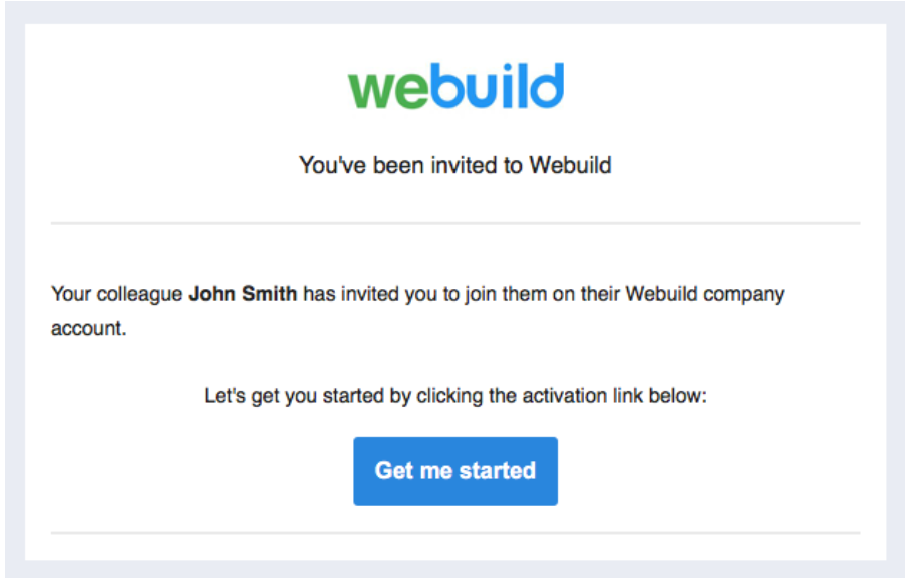
Invited team members will receive an email notification.
After clicking the “Get me started” button, team members will be directed to a one-step wizard to confirm some information and add their password.
Once this is done, team members will have access to their account and start working on projects.
Step 3 - Assign admin rights to team members
Admin users can:
– Edit company name and branch information
– Remove other users
– Give admin rights to other users
To assign admin rights to team members in your account, follow the below steps.
After you log in to your Webuild account, you can access your company profile by clicking your name on the top-right hand side of your screen

Once you have navigated to your company profile, select the USERS tab and click the INVITE button to invite team members to join your account (if they have not already joined the account before).

Click the small button on the right-hand side of the related user and select “Make Admin” from the menu.

Spep 4 - Import your contacts into the Address Book
Complete the Address Book section by importing your contacts. Open [in a new tab] the SECTION below applicable to your situation to view the related instructions:
• Import your contacts from Outlook (native) – See THIS SECTION for details, OR
• Import your contacts from Gmail, LinkedIn, iCloud or other webmail – See THIS SECTION for details, OR
• Import your contacts from a CSV file – See THIS SECTION for details, OR
• Import your contacts via spreadsheet copy/paste – See THIS SECTION for details.
Create your first project
Now that you have created your Webuild account, you are ready to create your first project. This article will explain how to create a project on your Webuild account.
After logging in to your account, your “Projects” area will be displayed. Click the “NEW” button to start the create project wizard.

In the first step of the create project wizard, you have the option to select either the “Design”, “Pre-construction” or “Construction” phase project type.
The Pre-construction phase includes projects in the bidding/tendering stage.
After selecting your project type, click the “NEXT” button.

Complete your project information, then click the “NEXT” button.

To add team members to your project, click the search field and select the team members you wish to add.
You can also invite new team members to join your organisation (and project) by clicking the search field and selecting the “ADD TEAM MEMBER” button.
After adding colleagues to your project team list, select their related permissions by clicking the menu to the right of their name and selecting either “Office staff” or “Site staff”.

After adding your team members, click the “CREATE” button to finish creating your project.
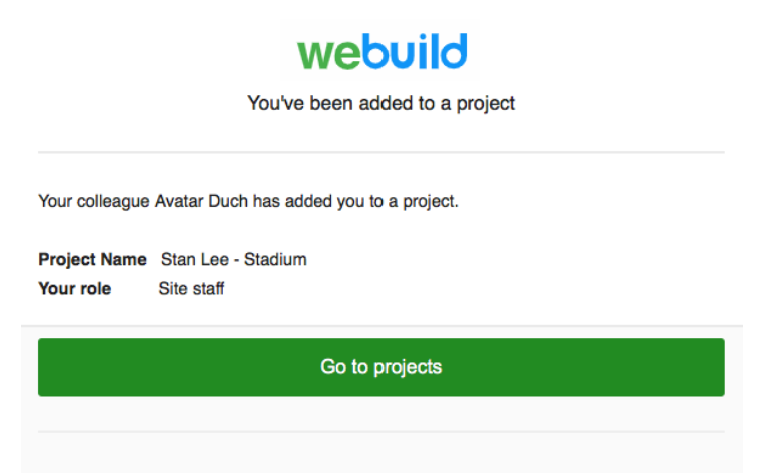
Any added team members will receive an email notification like the one below, with a button directing them to your project.
Your project is now operational and ready to upload project documents and to use the management forms listed in our tools library by ticking the forms you want to use in your project.
Our email support enables us to provide the most prompt and efficient support services for our clients due to the different time zones in which our platform is used. Our support Inboxes are monitored 24 hours a day. All emails are responded to within 24 hours, and all urgent matters are attended to immediately.
Accounts Support: accounts@webuildcs.com Technical Support: support@webuildcs.com

