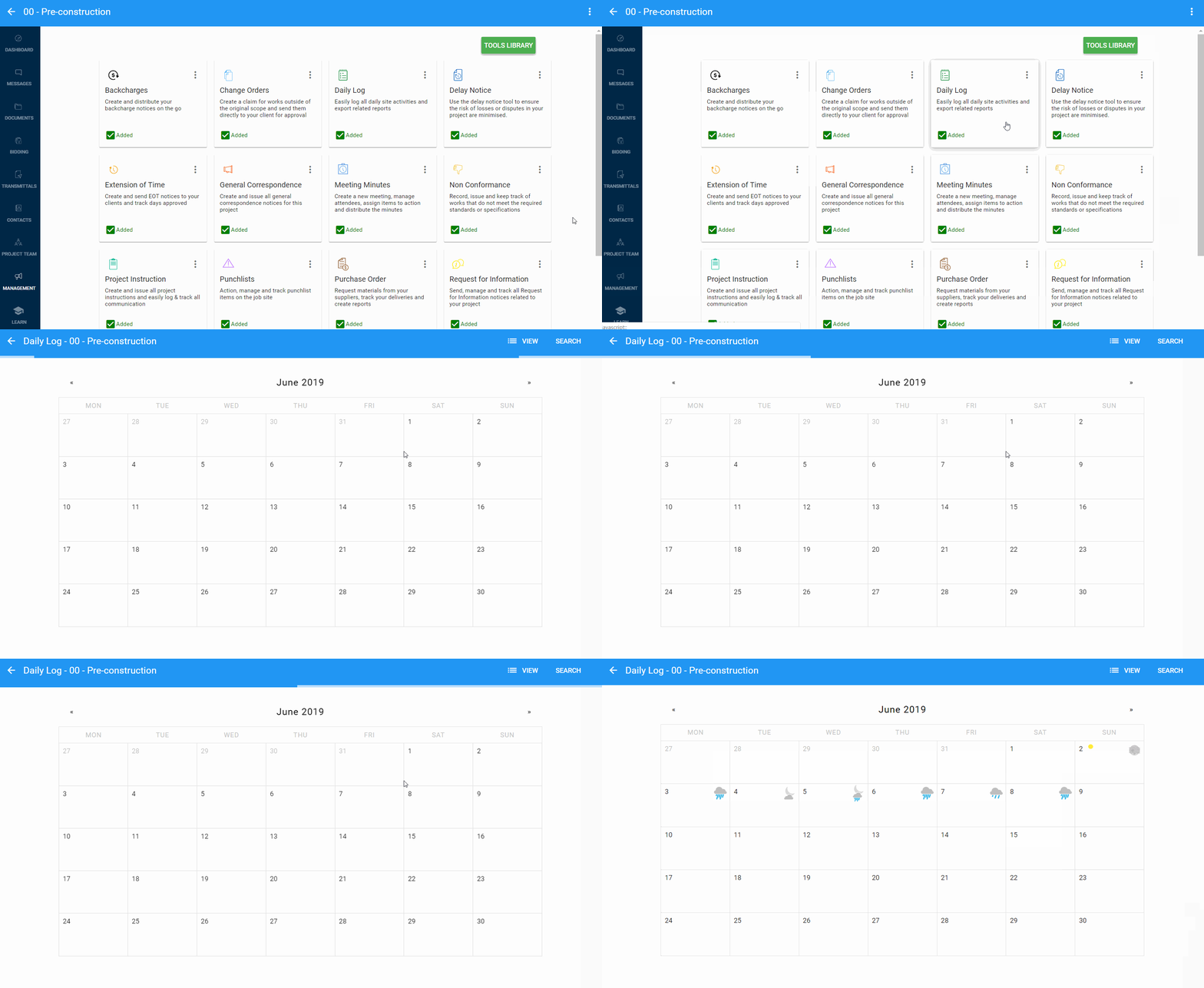
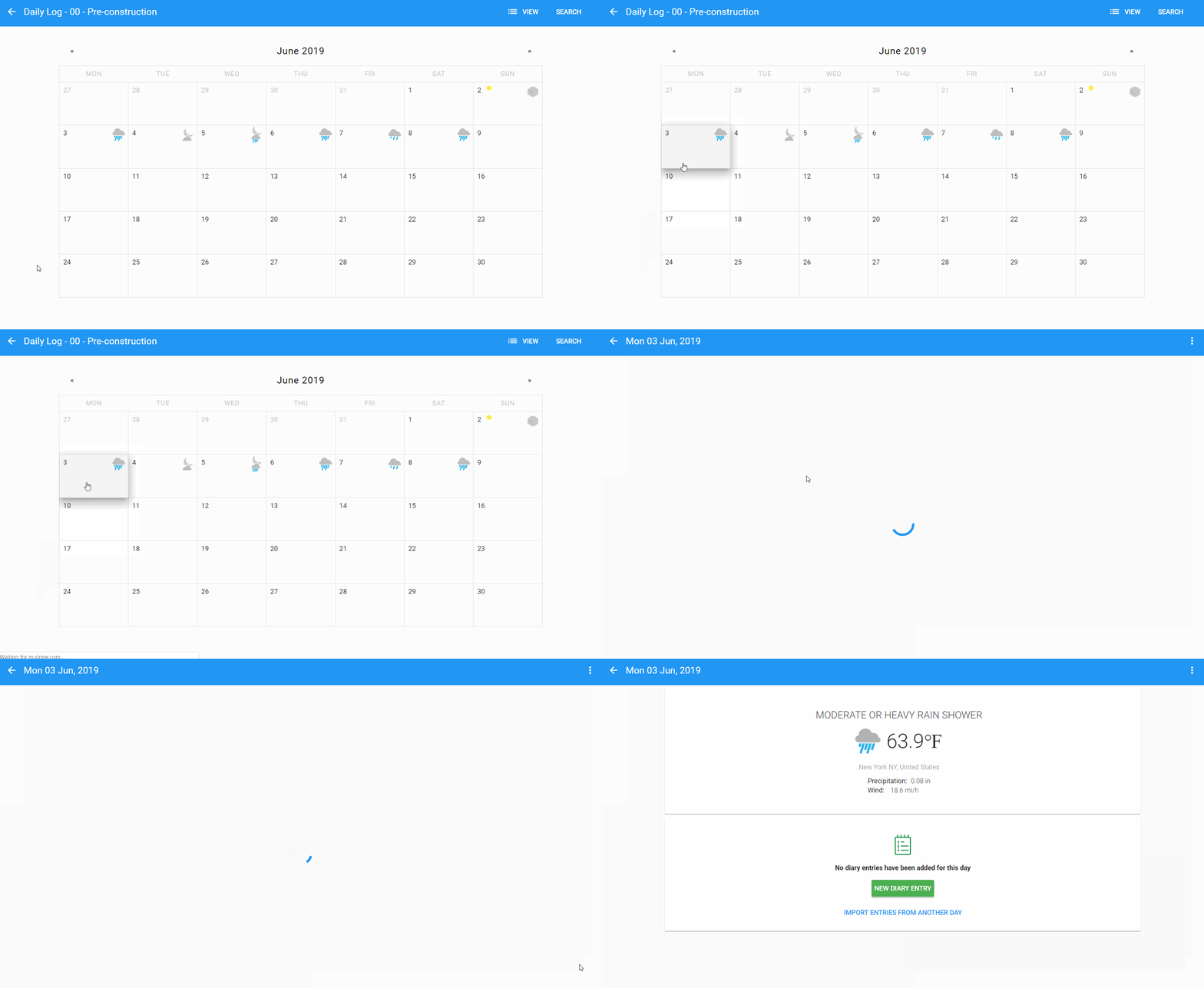
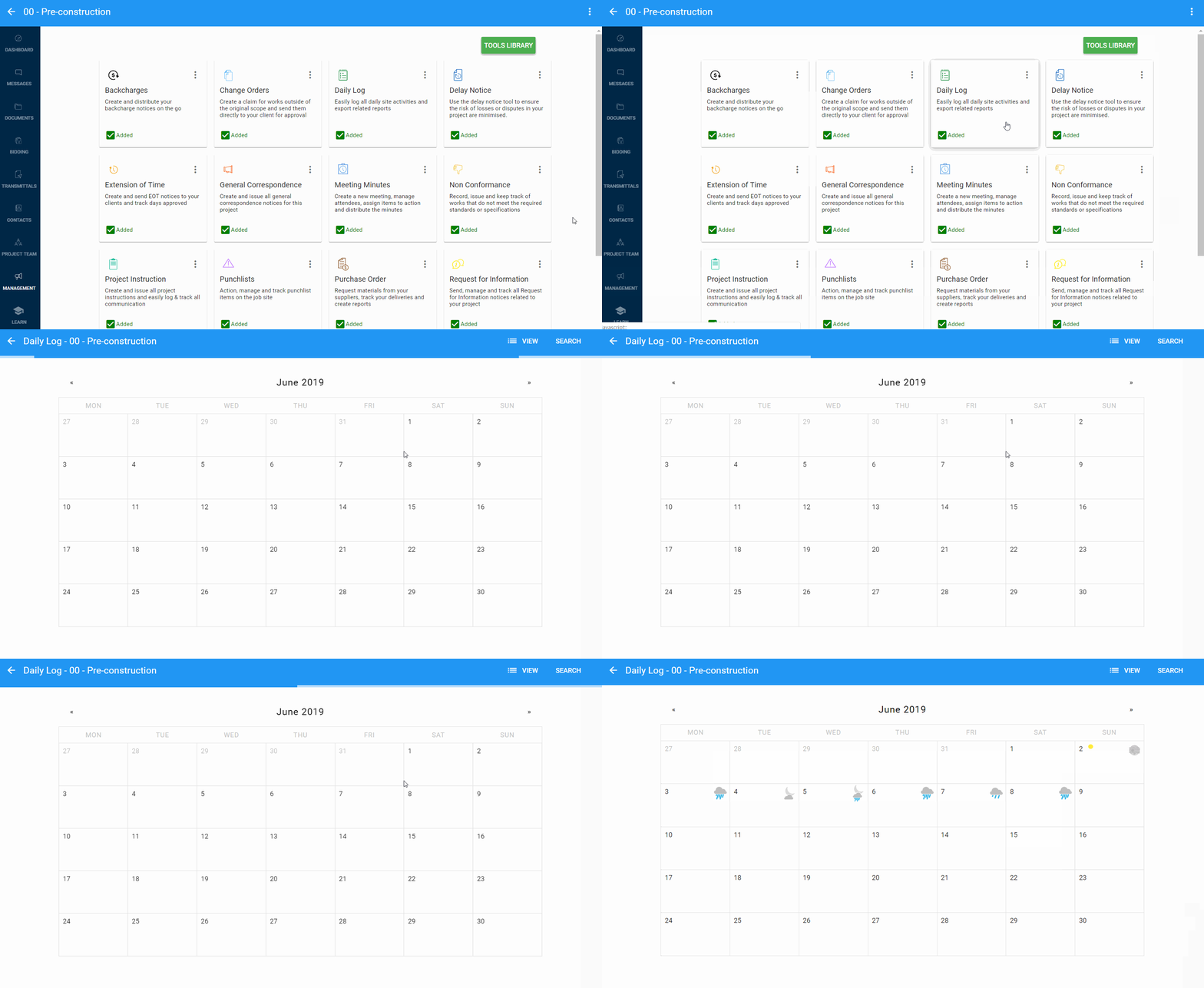
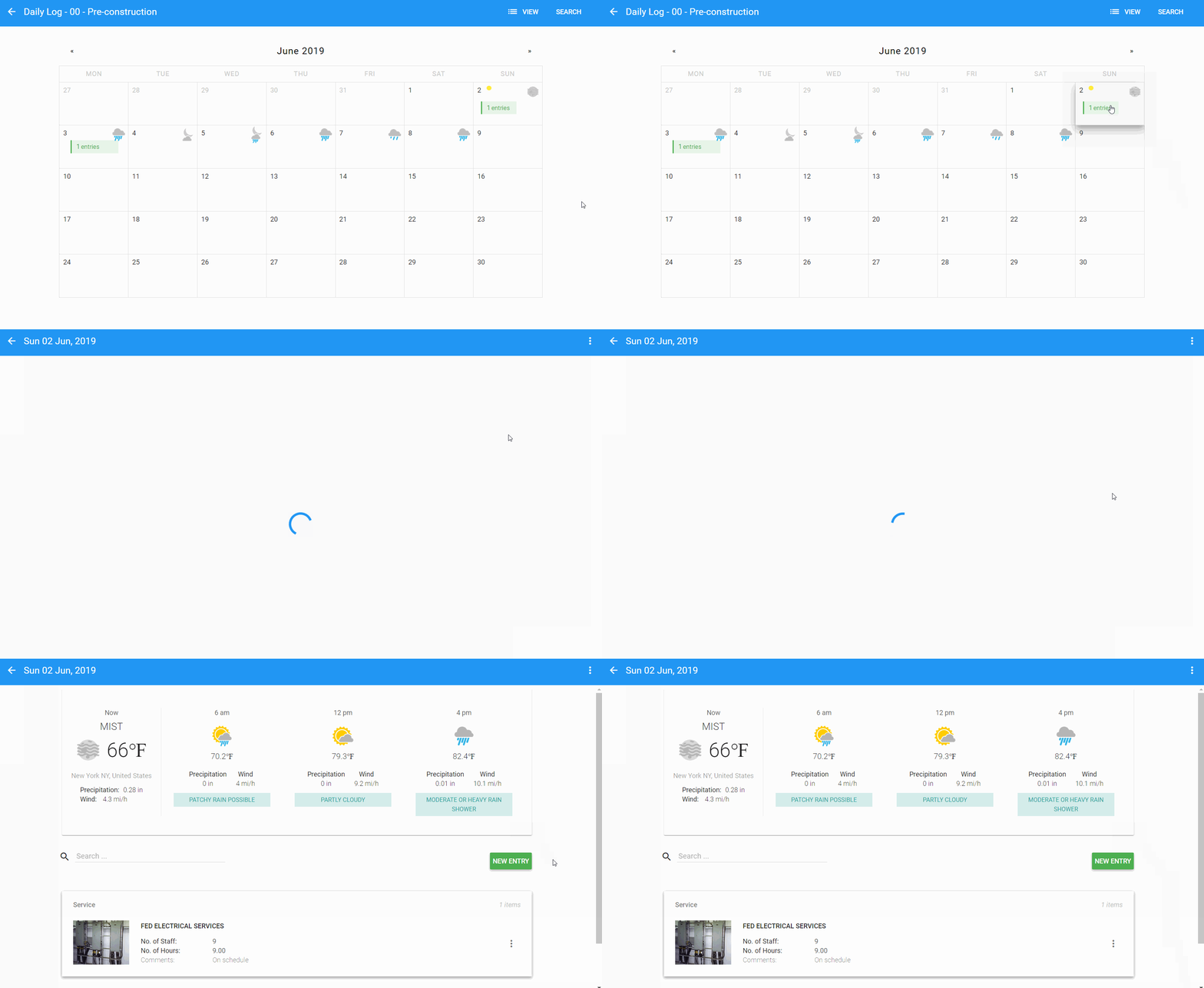
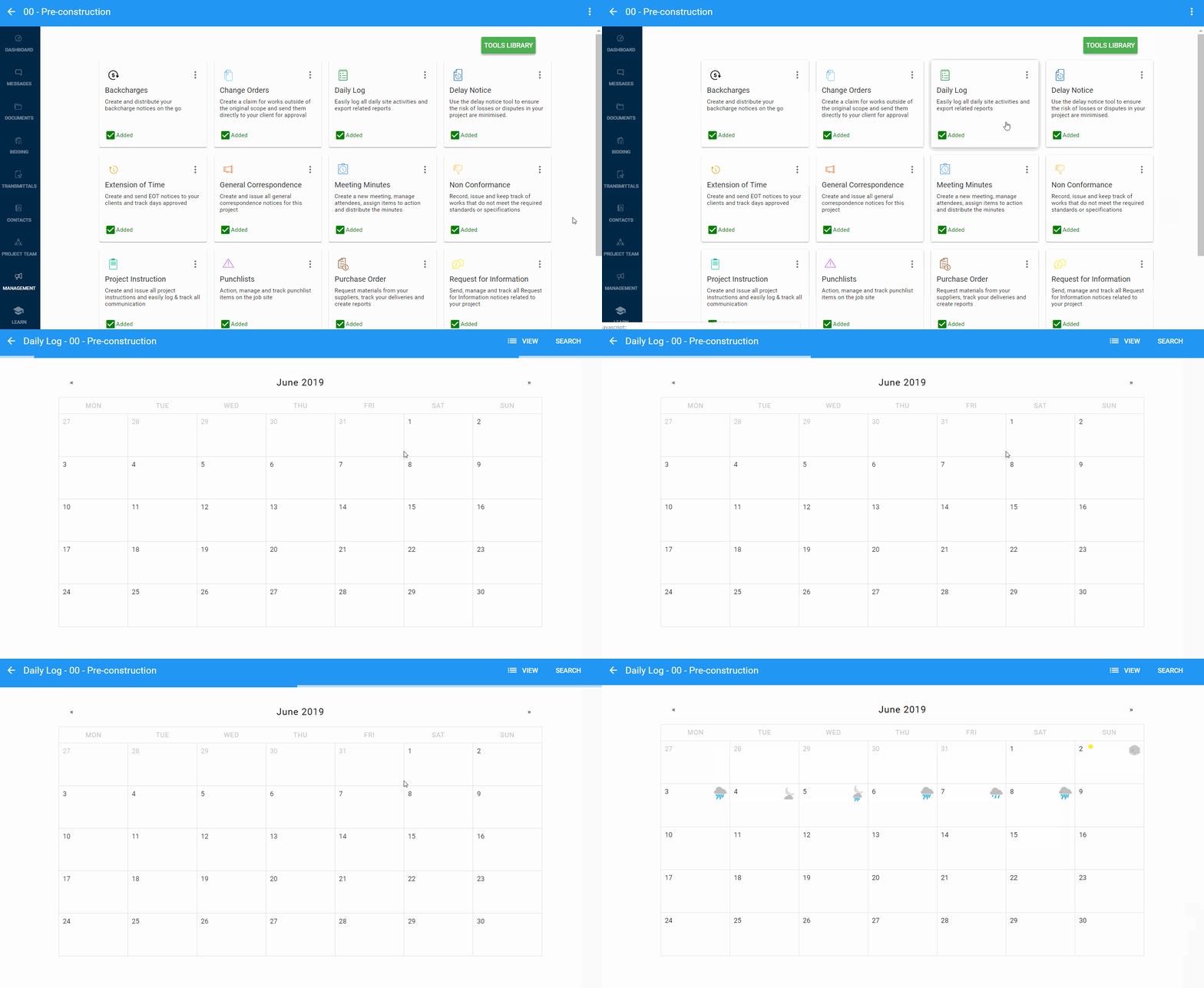
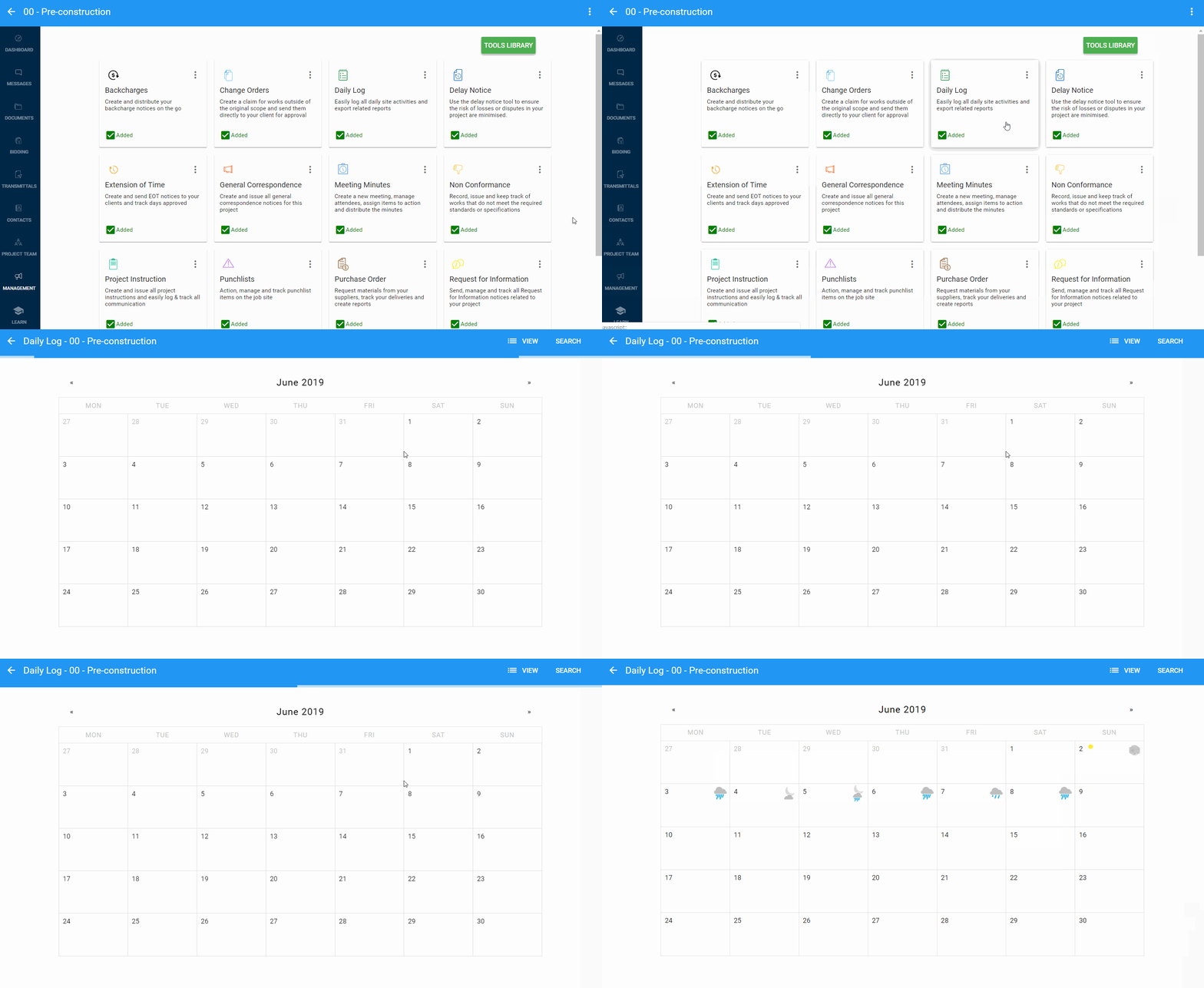
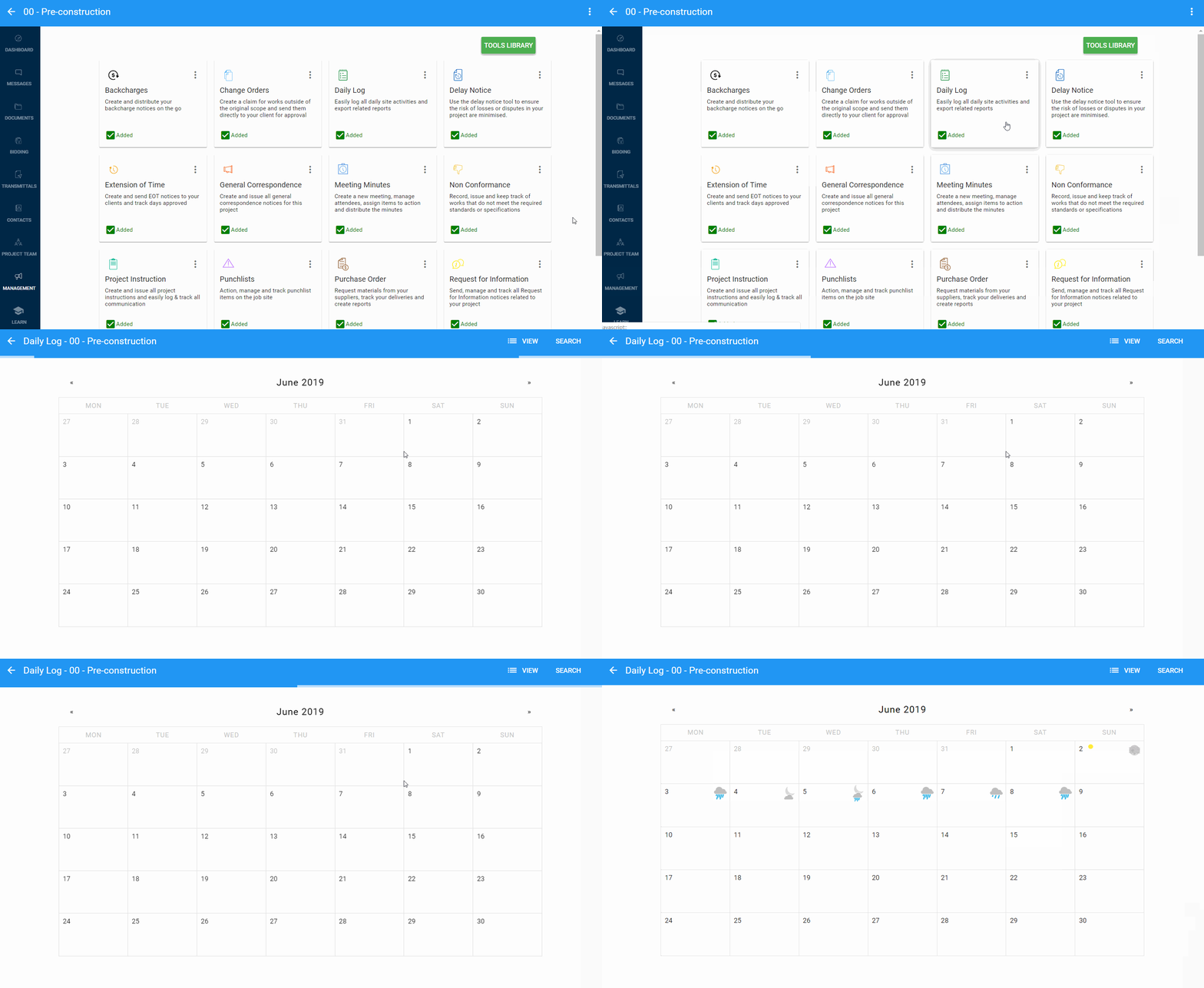
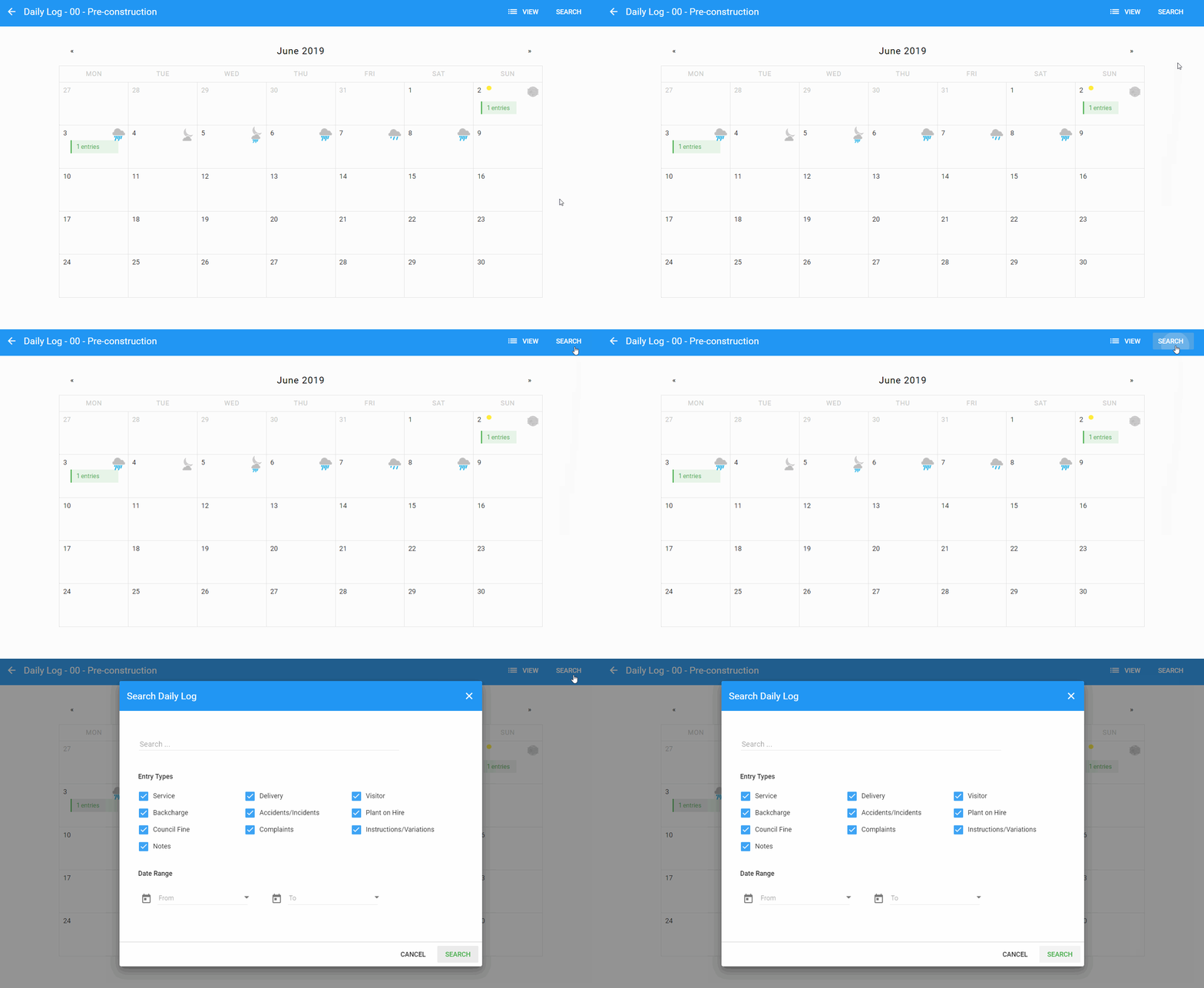
Step 1: Go to the Daily Log
Navigate to your Management module and click on the Daily Log tool to access your project’s Daily Log.

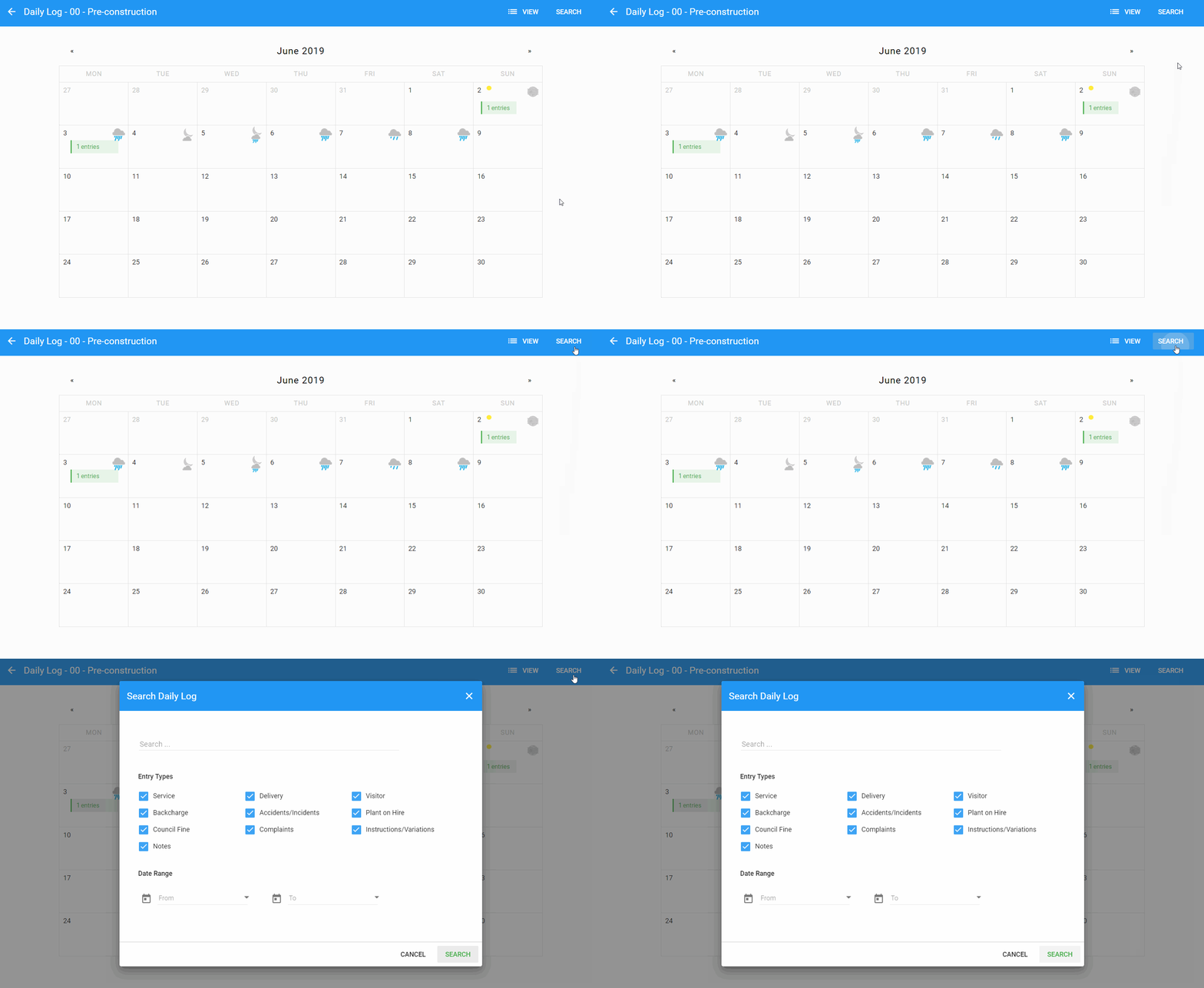
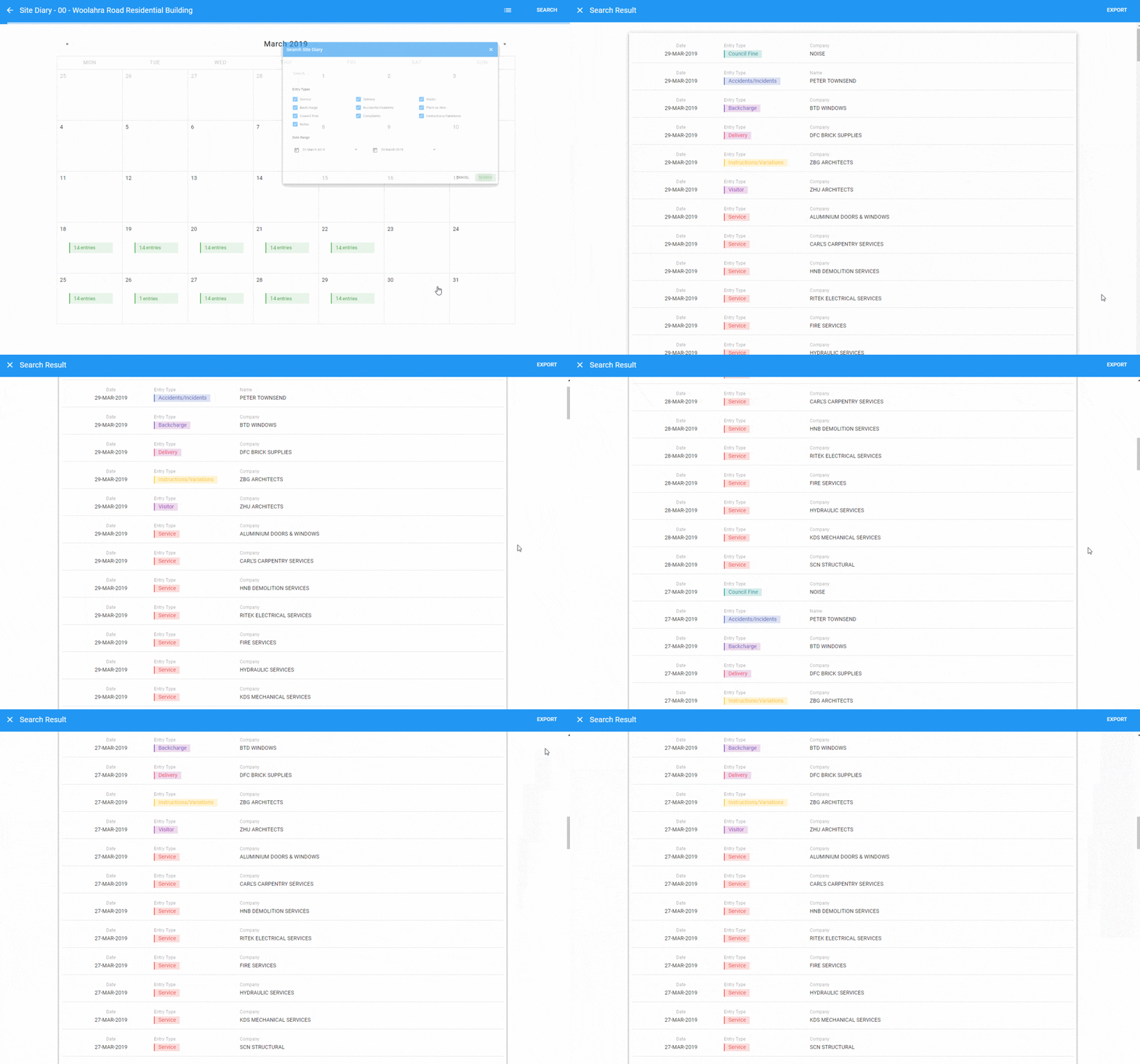
Step 2: Click on the “SEARCH” button
Click on the “SEARCH” button on the top right-hand side of your screen.

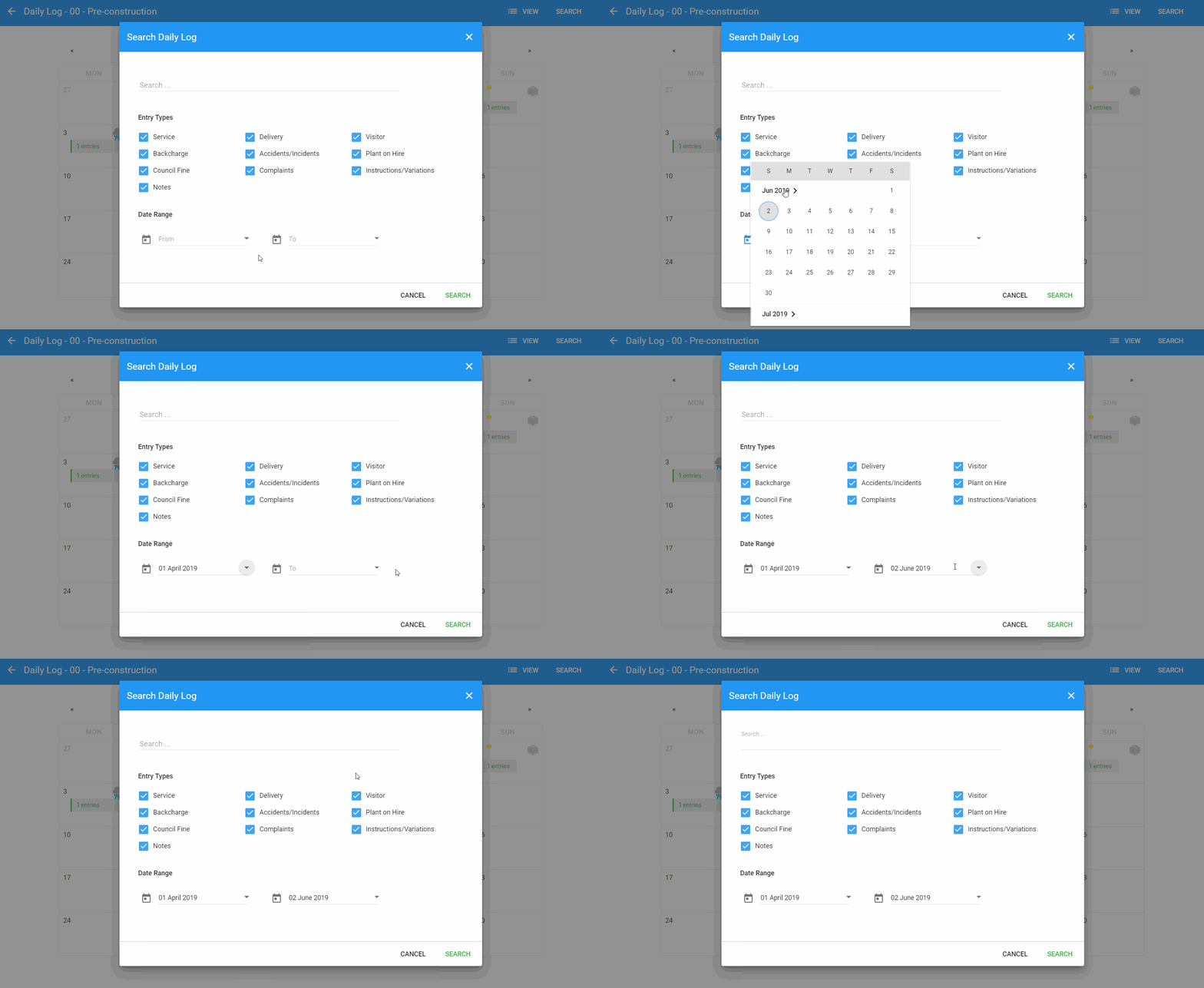
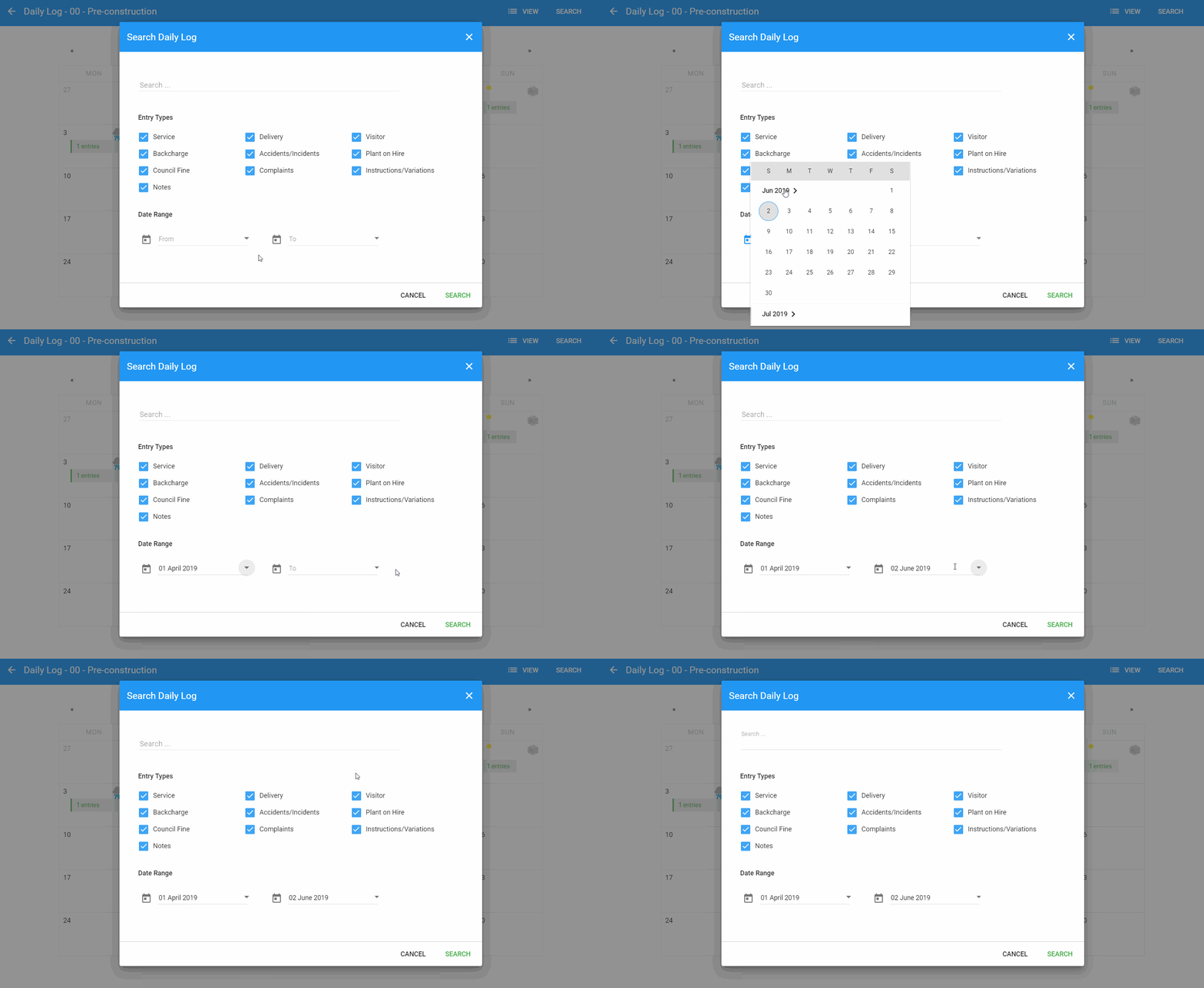
Step 3: Select search criteria
To search for Daily Log entries by description, company name or title, type into the “Search” text input.
You can also search by entry type, and/or within a certain date range.
Step 4: Click the “SEARCH” button
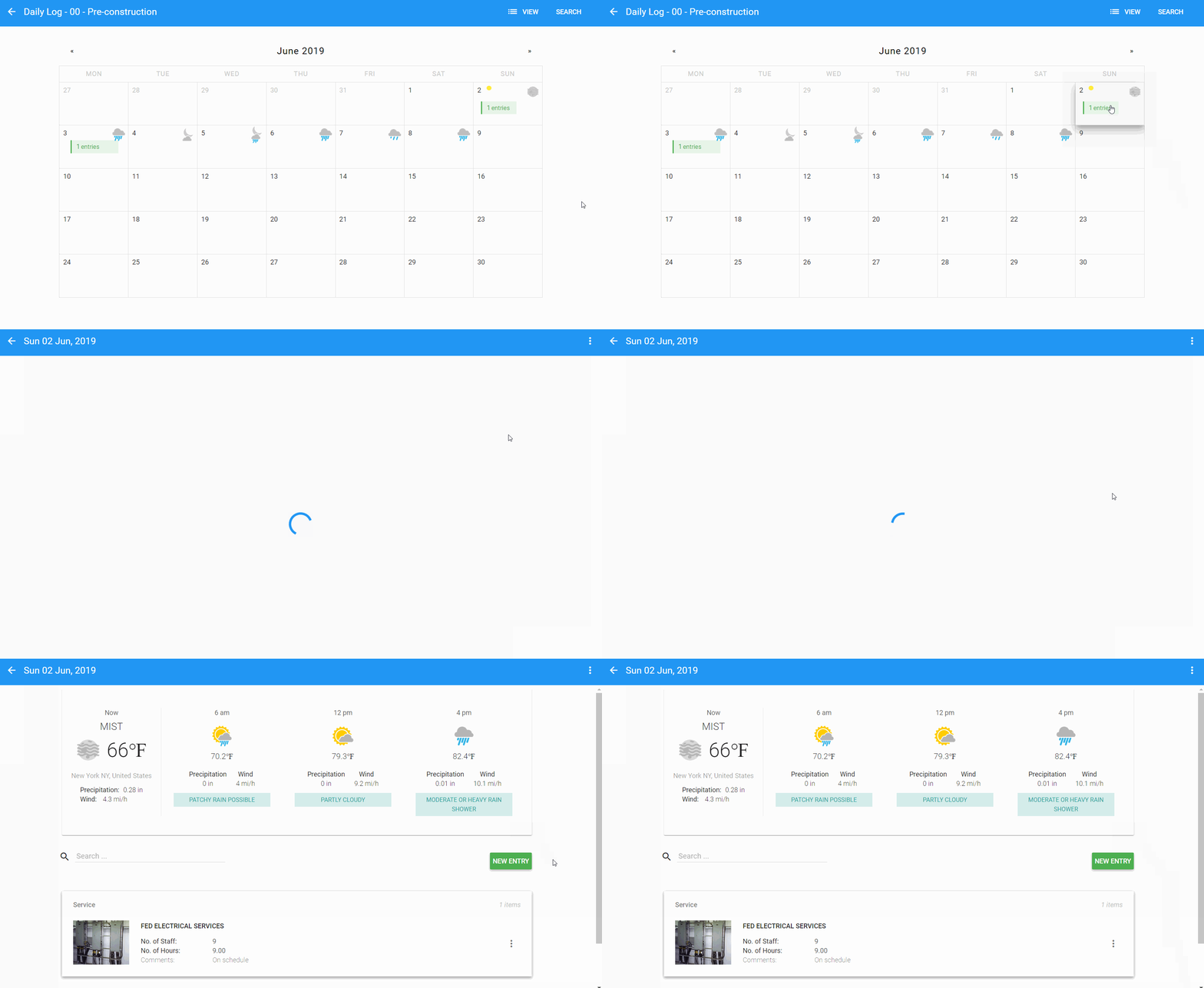
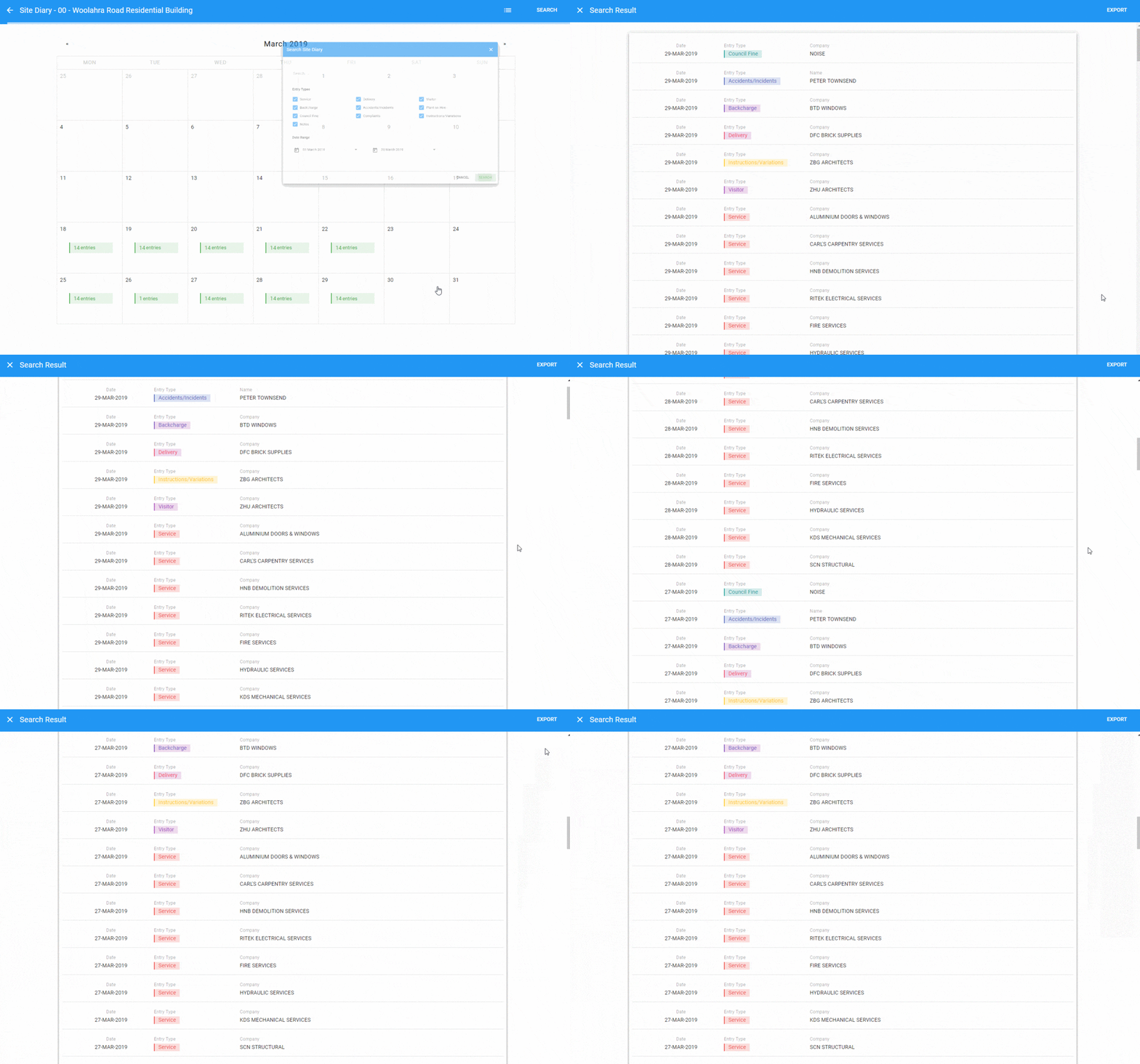
Click the “SEARCH” button on the bottom right-hand side of the dialogue to display your list of search results. You can view a specific entry by clicking on the related entry tile.

Step 6: Create a report (optional)
You can create a Daily Log report based on your list of search results by clicking the “EXPORT” button on the top right-hand side of your screen.
The exported folder will be in “.zip” format, containing the Daily Log pdf report and all related attachments.
Example: Daily Log Report pdf file